
Calendar
A month view of your device calendar where you add, change and delete events without leaving the keyboard, with up to two of eight non-Gregorian calendars alongside Gregorian.
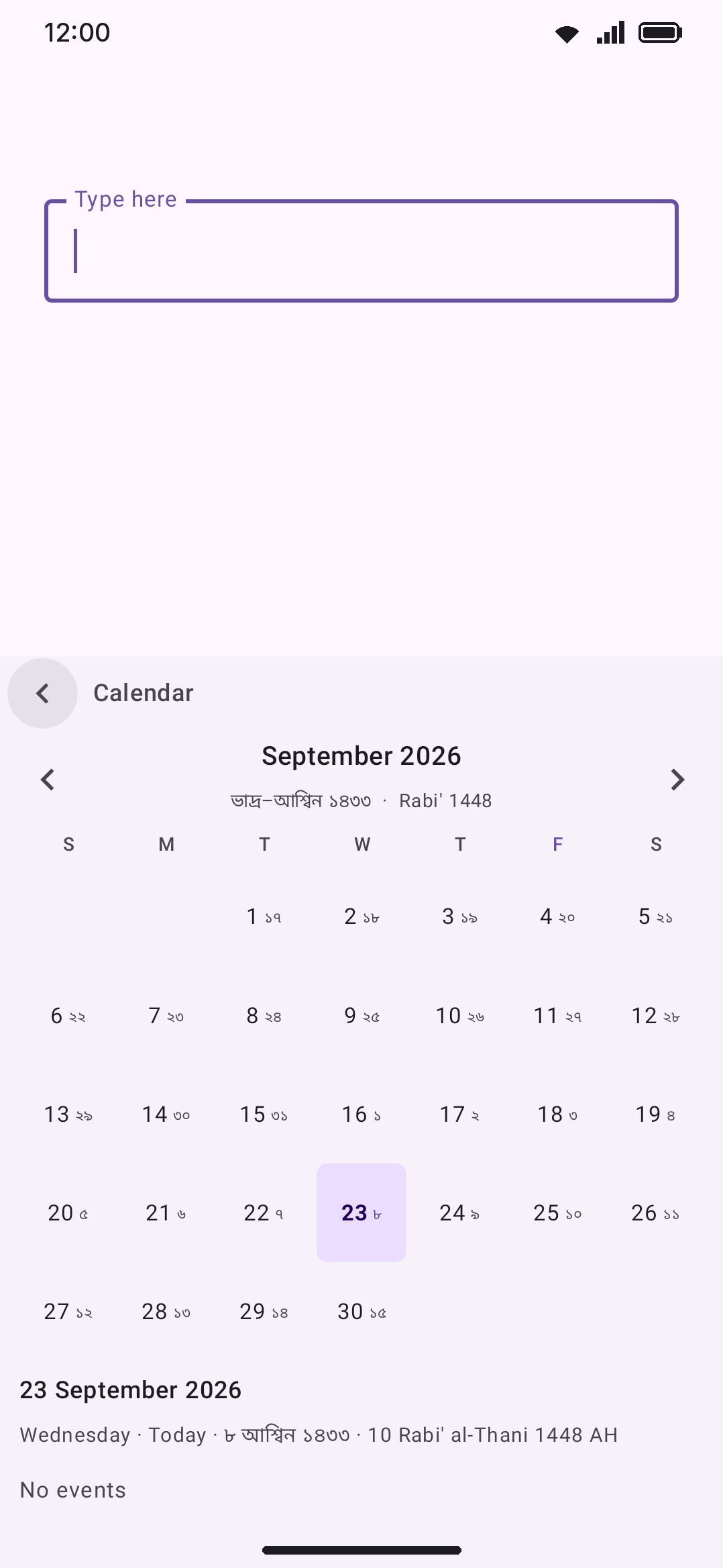
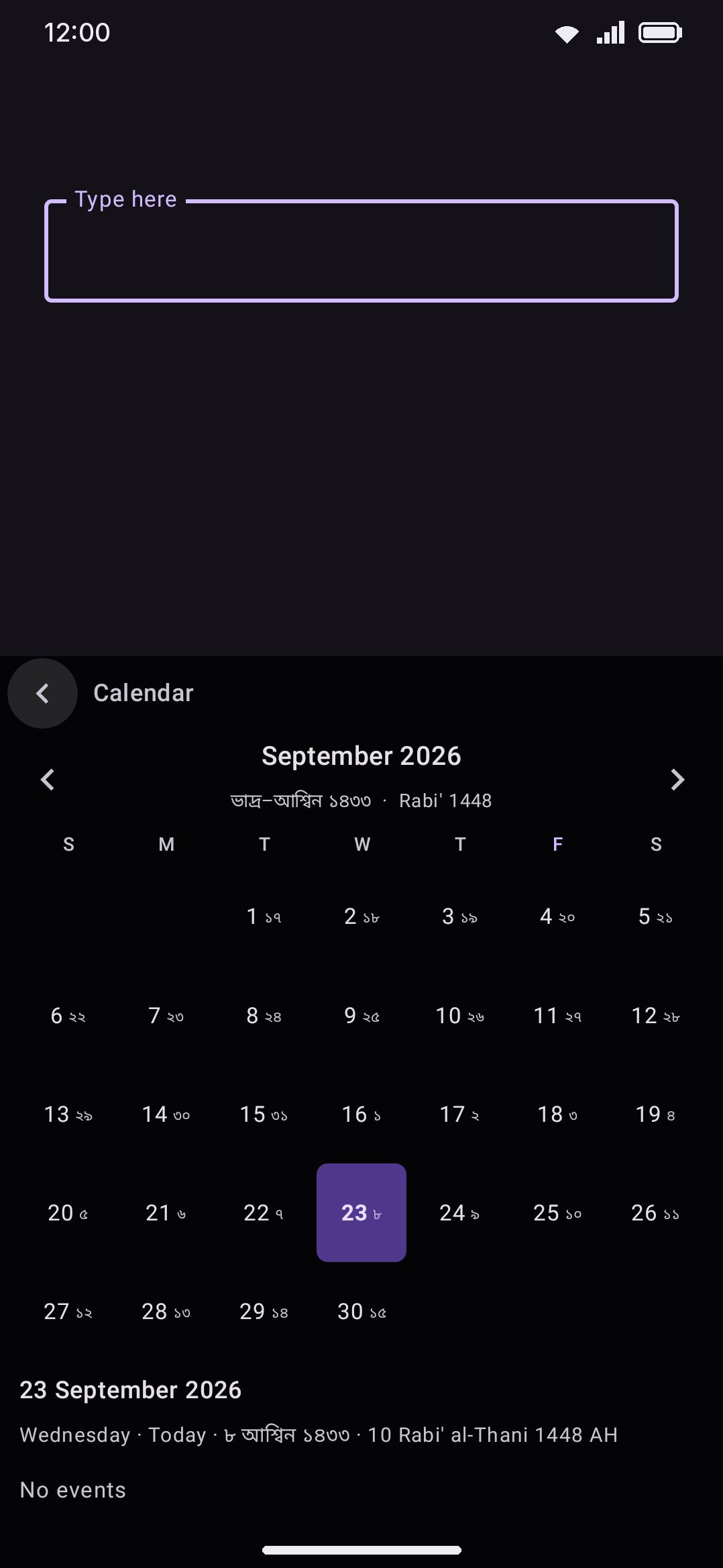
The Calendar tool opens a full month grid inside the keyboard, or the same month as an agenda down a day rail. Browse any month, and up to two non-Gregorian calendars ride alongside the Gregorian dates over the grid and inside each day cell. Tap a day to see its date across every calendar you’ve picked, plus whatever’s on your device calendar for that day as a row of cards. You can also add an event, change or delete one (repeating ones included), invite guests, and type an event into the app you’re writing in, all without leaving the keyboard.
Browsing the month
Section titled “Browsing the month”Open Calendar from the toolbar, or from the toolbox if you haven’t pinned it. The header carries the month and year as its title, a Today chip, a Month | Day | Agenda switch, a round + for a new event and the tool’s settings. Swipe sideways across the grid to step a month: the grid slides out and the next one slides in. Tap the title to drop a month picker instead, with the year between two arrows and the twelve months as chips, so a date far away is two taps rather than a dozen swipes. Today jumps straight back and reselects today. The weekday row along the top tints your weekend in the accent color, and which days those are is a setting that starts off from your phone’s region (see Options).
Tapping a day cell doesn’t leave the panel. It updates the summary and the cards below the grid. The selected day sits on an accent disc that springs across the grid to whichever day you tap next, today’s cell has a thin accent ring, and a small dot sits under every day that has something on. On the selected day the dots take the colors of its events’ calendars. Press and hold a day to start a new event on it.
If either of your two chosen calendars has day numbers that don’t line up one-to-one with the Gregorian grid, its day number rides inside the cell as a small second number next to the Gregorian one. Bengali dates render in Bengali numerals (০–৯). The first day of a Chinese lunar month shows the month name instead of a bare “1”, since that’s the only cue in the grid that a lunar month just turned over.
Below the grid, the selected day shows its full Gregorian date, weekday and a relative label (Today, Tomorrow, Yesterday, “in N days,” or “N days ago”) on one line, and the same date in whichever alternate calendars you’ve picked under it.
Today’s events
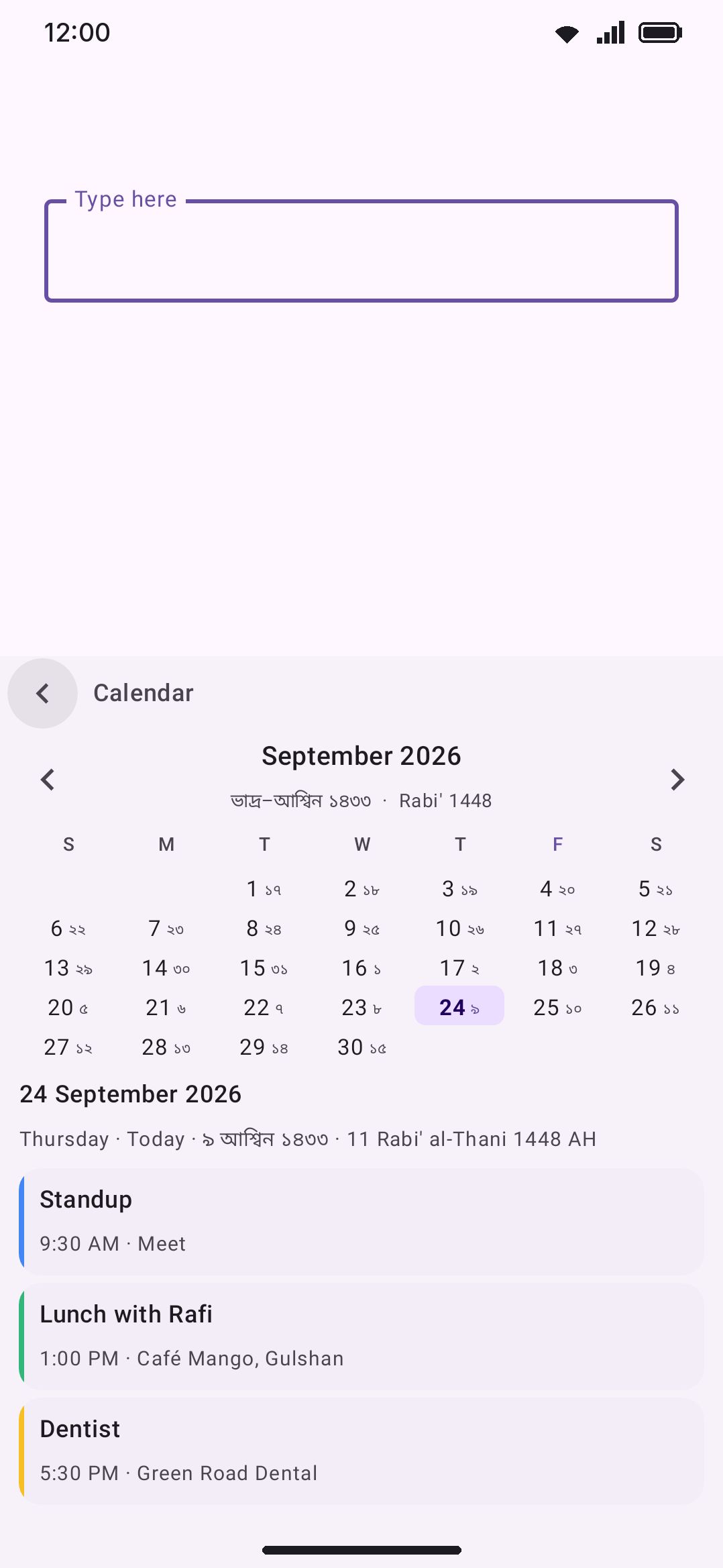
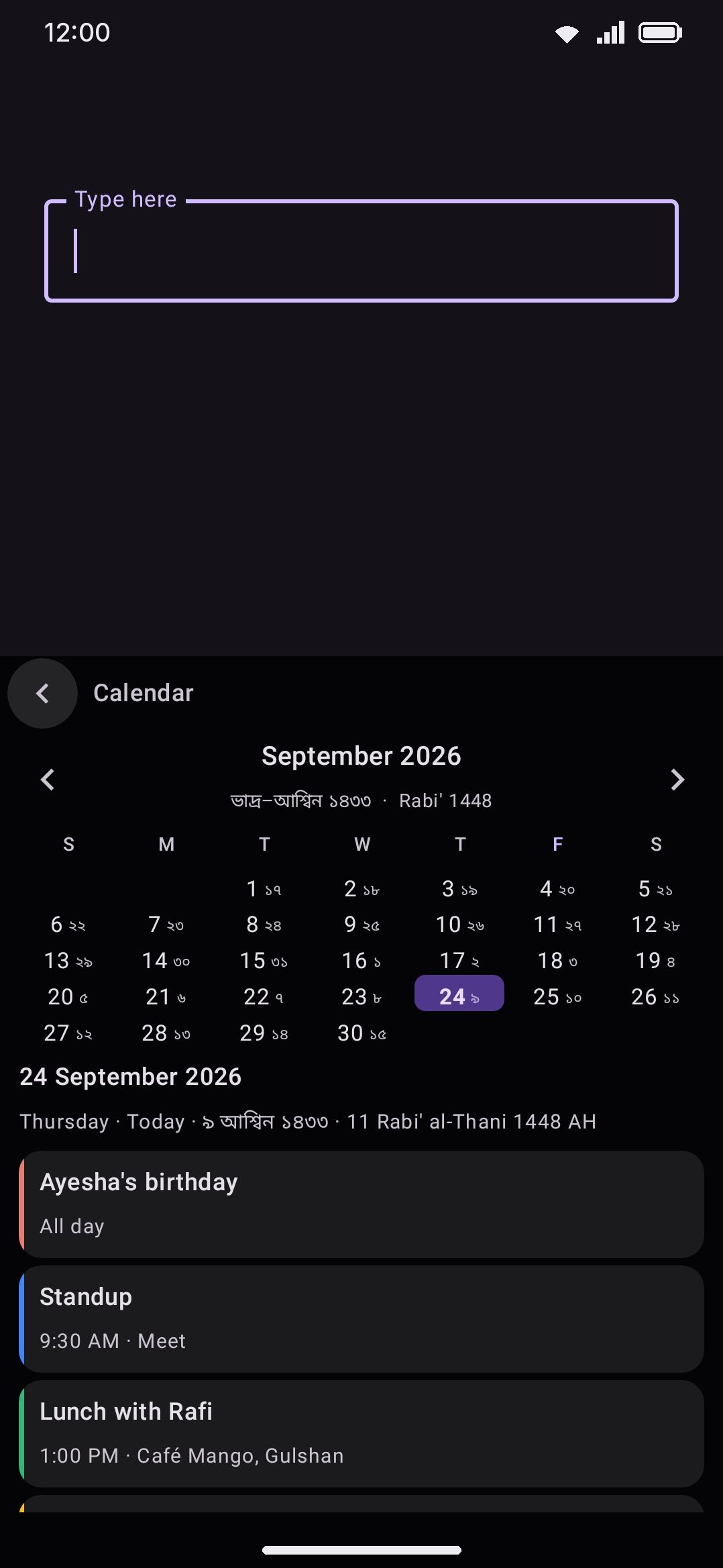
Section titled “Today’s events”The bottom of the panel reads events straight from your device calendar for whichever day is selected. Until you grant calendar access, it shows a one-line prompt with an Allow button instead of any event data. Once granted, it queries in the background every time you change the selected day: a blank row while loading, “No events” with a New event button if the day is clear, or a row of event cards you swipe through sideways otherwise. The cards pop in one after another each time you pick a day.
Each card is tinted with its calendar’s color and carries a stripe of it down the left edge (the accent color where the calendar doesn’t provide one). The time runs along the top as a start and end, “9:00 – 10:00 AM”, with an All day badge in its place for all-day events and a small repeat mark on the right for recurring ones; then the title, then the place if the event has one. Recurring events are expanded per occurrence, so a weekly meeting shows up on every day it actually lands on rather than only its first occurrence. Events in calendars you’ve hidden in your calendar app stay hidden here too.
Tap a card to open the event. The event’s own face shows it as a larger card in the same color with when and the title, then how it repeats, the place, notes, guests (with who said yes, no or maybe) and reminders as lines under it; the calendar it’s in is named in the header. Along the bottom runs a bar: Edit as the main button when you can change the event, with Insert as text, Open in calendar app, Invite online and Delete as round buttons beside it. For an event you can’t change, Insert as text takes the main spot.
Weather on events
Section titled “Weather on events”Turn on Weather on events (see Options) and each card for an event that hasn’t ended yet carries a small weather icon and a temperature on its time line, like ”⛅ 21°”. It’s the forecast for the hour the event starts, or for now if it’s already under way, and for midday of an all-day event. The temperature follows the weather tool’s Celsius or Fahrenheit switch.
The forecast is for the event’s place. The keyboard looks the place up with Open-Meteo’s place search, which finds towns and cities rather than street addresses, so it searches the parts of the place one at a time: in “Café Nero, 12 Oxford Street, London W1, UK” it finds London. House numbers, postcodes and state codes are dropped first. A video call (“Zoom”, “Google Meet”, a link) or a room (“Room 4”) has no place to search, so an event like that, or one with no place at all, or one whose place the search can’t find, uses the weather tool’s own location. A place that searched to nothing isn’t searched again while the keyboard runs.
Open-Meteo forecasts 16 days ahead, today included, so an event further away than that shows no weather until it comes into range. Neither does an event that’s already over.
Tap the icon to open the Weather panel on that day’s hours at that place. The top line names the event, the place (marked “your weather location” when the weather tool’s place stood in), the date and the day’s high and low. Under it, the event’s hour is drawn large with its temperature, its sky and its chance of rain, and a strip below runs through every hour of the day, each with its time, an icon, the temperature and the chance of rain. The strip opens scrolled to the event’s hour, and tapping another hour moves the summary to it. The refresh button fetches that forecast again, and the back arrow returns to the calendar on the event’s day. Opening Weather from the toolbar afterwards shows its usual current conditions.
One forecast covers every event at the same place for all 16 days, so a week of meetings in one town is a single request. The keyboard keeps it until it’s older than the weather tool’s How often to check (15 minutes by default) and fetches it again the next time a card needs it. While data saving is on, or there’s no network, the cards fetch nothing by themselves: they show a forecast the keyboard already has (up to a day old) or no weather at all. Tapping the icon still fetches the hours when there’s a network.
Invite online
Section titled “Invite online”Since 0.6.7 an event can become a page people sign up on, on a free and open-source event service you have an account with: Mobilizon or Pretix. Set the account up first under Options, then open the event and press Invite online.
The card that opens is filled in from the event. Its title and its times are on a card at the top, and under it sit chips for the place, the description (the event’s notes), and who can find it. A tap on the title card or on a text chip sends the keys there, so you can change what the invitation says without changing the event in your calendar. With both services set up, a switch at the top picks one; the card opens on the one you used last.
- Place: a street address becomes the event’s address. A link (a video call, a stream) becomes its online address instead. On Mobilizon, an event with a street address and a call link in its notes gets both.
- Only people with the link or Listed publicly: an unlisted invitation is reachable only through its link. Listed, it shows in the service’s own lists and search.
- Post as (Mobilizon): your first profile, unless you pick another. Tapping the chip fetches your profiles and the groups you can post for, and a group’s event appears on the group’s page.
- Places (Pretix): how many people can sign up, from no limit up to 200.
Publish sends it. When it’s out, the card shows the link with Insert link as the main button, Insert invitation (the title, when and where on one line, then the link) and Open page beside it.
What each service makes of it:
- Mobilizon creates a confirmed event with free registration, under your profile or the group. Your notes become its description. An all-day event shows its days without a start or end time. Mobilizon sends you its own emails as people sign up.
- Pretix creates the event with one free ticket called “Sign-up” and a quota for the places you picked, puts your notes on its front page and opens its shop, so people sign up with their email address. If the organizer still needs something before a shop can open (a required setting, say), the event stays offline and the card says why, with Open Pretix to finish there. Its link still works once it’s live.
Problems show on the card, each with the button that fixes it: Try again when there was no connection or no answer, Settings when the account was signed out or turned down, and Go ahead while data saving is on. Data saving doesn’t block an invitation, which is only a few kilobytes, but the card asks once per invitation before it uses the network.
Agenda
Section titled “Agenda”The Agenda side of the header’s switch shows the same month as a list. A rail down the left names each day that has something on (Today, Tomorrow, Yesterday, or the date), with a dot on the rail per day and the accent dot on today, and the day’s events sit beside it as the same tinted cards. The day you’ve selected is the one whose cards are loaded, with a ring around its dot; a day you haven’t opened yet shows a quiet card with its date that loads it when tapped, and once a day has been opened its cards stay while you move around the month. Swiping sideways moves a month here too. A month with nothing on offers New event in the middle, and until calendar access is granted the agenda shows the Allow prompt in its place.
Since 0.6.7 the Day side of the switch shows the selected day as a timeline: the hours down the left, each timed event as a block from its start to its end in its calendar’s color, and events that overlap side by side. The day’s all-day events sit as chips above the hours, and today has a line at the current time. The timeline opens scrolled to the first event, or to the hour before now on today. Swipe sideways to step a day.
- Tap an event to open it, as from a card.
- Hold an event and drag it up or down to move it. It moves in 15-minute steps, with a tick at each, and shows its new start and end while you drag. Lifting saves the move and keeps the event’s length. A repeating event asks first whether the move is for that occurrence, the following ones or all of them, as editing one does. Undo puts it back. Events you can’t change (a shared calendar you can only read, say) don’t lift.
- Hold an empty hour to start a new event at that quarter hour.
Moving an event across days isn’t possible on the timeline. Open the event and change its date instead.
Adding an event
Section titled “Adding an event”Tap the round + in the header, or press and hold a day in the grid. The composer opens on the selected day with the title already taking your typing, and the panel folds down so the keys show underneath; while you type, the folded panel shows the event’s preview card so you keep your bearings. Done (or Enter) moves you from the title to the place.
The composer is a preview card over a tray of chips. The card is the event as it will look in the month, tinted with its calendar’s color: when it is, its title (or Title as a hint until you type one), its place, and a line in the accent color when it overlaps something already in your calendar (“Overlaps Standup”). It updates as you change anything. A tap on the card sends the keys back to the title.
Under it, each piece of the event is a chip that reads what it holds, or its hint while empty: the when, Add a place, Add guest (or how many guests), how it repeats, the reminders, which calendar (with its color dot), Add notes, and Busy or Free. Tapping a text chip sends the keys to it. Tapping any other unfolds its editor under the tray, one at a time, and the open chip is drawn selected:
- When holds All day, which turns the times off so the start and end name whole days; Starts and Ends, each with a date chip that opens a small month and a time chip that opens the same spinning drums the Clock tool uses; and the length chips (15 min up to 3 h), which set the end for you. Moving the start moves the end with it, so the length stays the same. If the end lands before the start, the Ends label and the card’s time turn the accent color and the main button refuses until it’s fixed. When the event’s time zone isn’t the phone’s, a chip names the zone the times are in.
- Busy or Free flips on a tap.
- Repeat, Reminders, the calendar and guests each have their own editor; see below.
A new event starts with the length and reminder you set in Options, in your default calendar. The bar along the bottom holds Add to calendar as the main button (Save changes when you’re editing), with Insert as text and Open in calendar app as round buttons beside it. The event goes straight into your calendar, the panel goes back to the month with that day selected, and an Undo bar takes it back out again if you change your mind. Cancel in the header throws the draft away.
If you close the panel halfway through, the draft is kept. Open the tool again and a Resume line at the top brings it back.
Reminders
Section titled “Reminders”The reminders chip lists what’s set, or No reminder while there are none. Tapping it unfolds the choices: at the start, 5, 10, 15 or 30 minutes, 1 or 2 hours, 1, 2 or 7 days before, with the ones already set drawn selected. A tap adds or removes one. Some calendar accounts limit how many reminders an event can carry, and the remaining choices grey out once you reach that limit.
Repeating events
Section titled “Repeating events”The repeat chip unfolds a set of chips worded for the event’s own day: daily, weekly on that weekday, every weekday (Monday to Friday), monthly on that date, monthly on its weekday (“the third Monday”), monthly on the last such weekday when it falls in the last week, and yearly. More options opens the rest: repeat every 2 weeks or every 3 months, pick several weekdays, and end it never, on a date, or after a number of times.
Move a weekly event to another day and its repeat day moves too, so a Monday meeting dragged to Tuesday keeps landing on Tuesdays. A repeat rule written by another app that this editor can’t show (several dates a month, say) appears as Custom repeat and is saved back exactly as it was unless you pick a different rule.
Guests
Section titled “Guests”The guests chip unfolds the guest list and Add guest, which opens a box for a name or an email address. With contacts allowed, typing a name lists the matching people with their addresses, and a tap adds one. Without contacts, type the whole address and press Enter. Each guest is a chip with a cross to take them off again.
Guests are written to the event the same way your calendar app writes them, which means your calendar account (Google Calendar, for one) may email them an invitation when it next syncs. The composer says so under the guest list. A calendar that only lives on your phone sends nothing.
Insert as text
Section titled “Insert as text”The Insert as text button types the event into the app you’re writing in, as one line: the title, the date and time in your own format, and the place, like “Standup, Mon 19 Oct, 9:00 – 10:00 AM · Room 4”. It’s on the bar of the event’s face and on the composer’s, so you can share a plan before or after saving it.
Changing and deleting events
Section titled “Changing and deleting events”Open an event and tap Edit. The composer opens with everything filled in, including its guests, reminders and repeat rule, and its main button reads Save changes, which writes them back to the same event. Delete on the event’s bar removes it, with Undo afterwards.
Events you can’t change show a note instead of Edit and Delete: one you were invited to by someone else (unless they let guests edit), or one in a read-only calendar such as holidays or a shared calendar you can only view.
Repeating events
Section titled “Repeating events”Changing or deleting one occurrence of a repeating event first asks which ones you mean:
- This event changes or removes just that day. The rest of the series is left alone.
- This and following ends the series the day before and, for a change, starts a new series from that day with your edits. A series that was set to run a number of times keeps the right total between the two halves.
- All events changes the whole series. A new time or a new day moves the series’ first occurrence by the same amount, so a series that began in March still begins in March.
If you changed the repeat rule itself, This event isn’t offered, since a single day can’t repeat. Undo can put back a single changed or removed day, a series that was cut short, and a deleted event.
Calendar permission
Section titled “Calendar permission”The keyboard asks for calendar access in two steps, and never at install or first launch. Reading comes first: tap Allow in the panel and you can see your events. Writing comes the first time you save or delete an event, and is asked for together with reading. Your event waits while the dialog is up, and is saved as soon as you come back with the grant. Refuse it and the composer says so and offers Open in calendar app instead, which hands the event to your calendar app’s own editor to save there.
An on-screen keyboard service can’t request runtime permissions directly. So each of these opens an invisible trampoline activity that shows a short explanation of what the access is for, then the system permission dialog, then closes itself the instant you answer. The camera tool uses the same pattern for its own permission. If you revoke calendar access in system Settings and come back to the keyboard, the panel notices as soon as it regains focus and drops back to the Allow prompt.
Guest suggestions ask for contacts access the same way, from the Suggest from contacts link under the guest box. The tool reads names and addresses only while that box is open and keeps nothing afterwards.
The tool writes only what you save, change or delete yourself. Nothing is changed in the background.
Options
Section titled “Options”Like every tool, Calendar opens with a Turn on switch and, while colorful tool icons are on globally, an Icon colour override (a soft red by default). Under those sits the Keyword shortcut group: Trigger words, pre-filled with “calendar, schedule”, a Match capitals toggle off by default, and a Reset to defaults row once you’ve edited the words. Then the tool’s own settings:
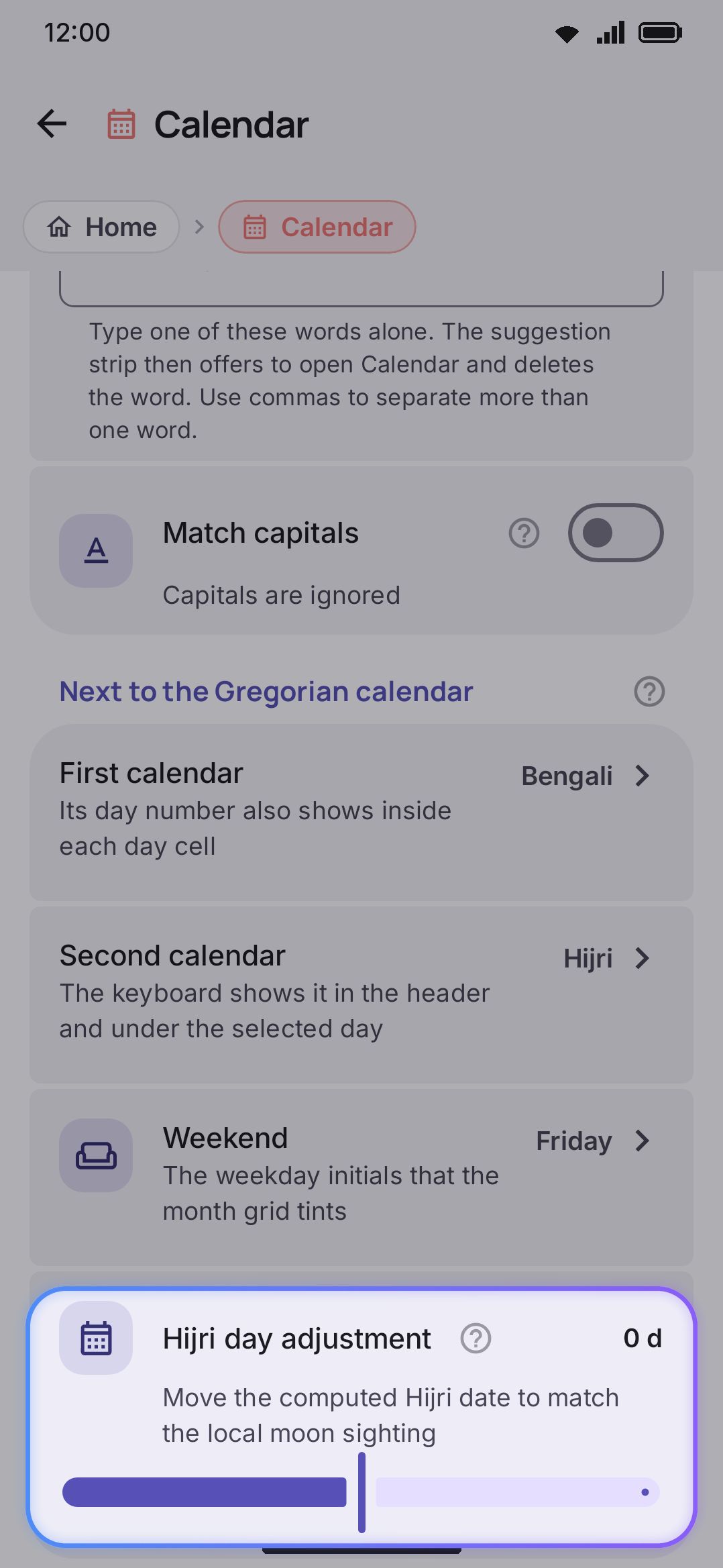
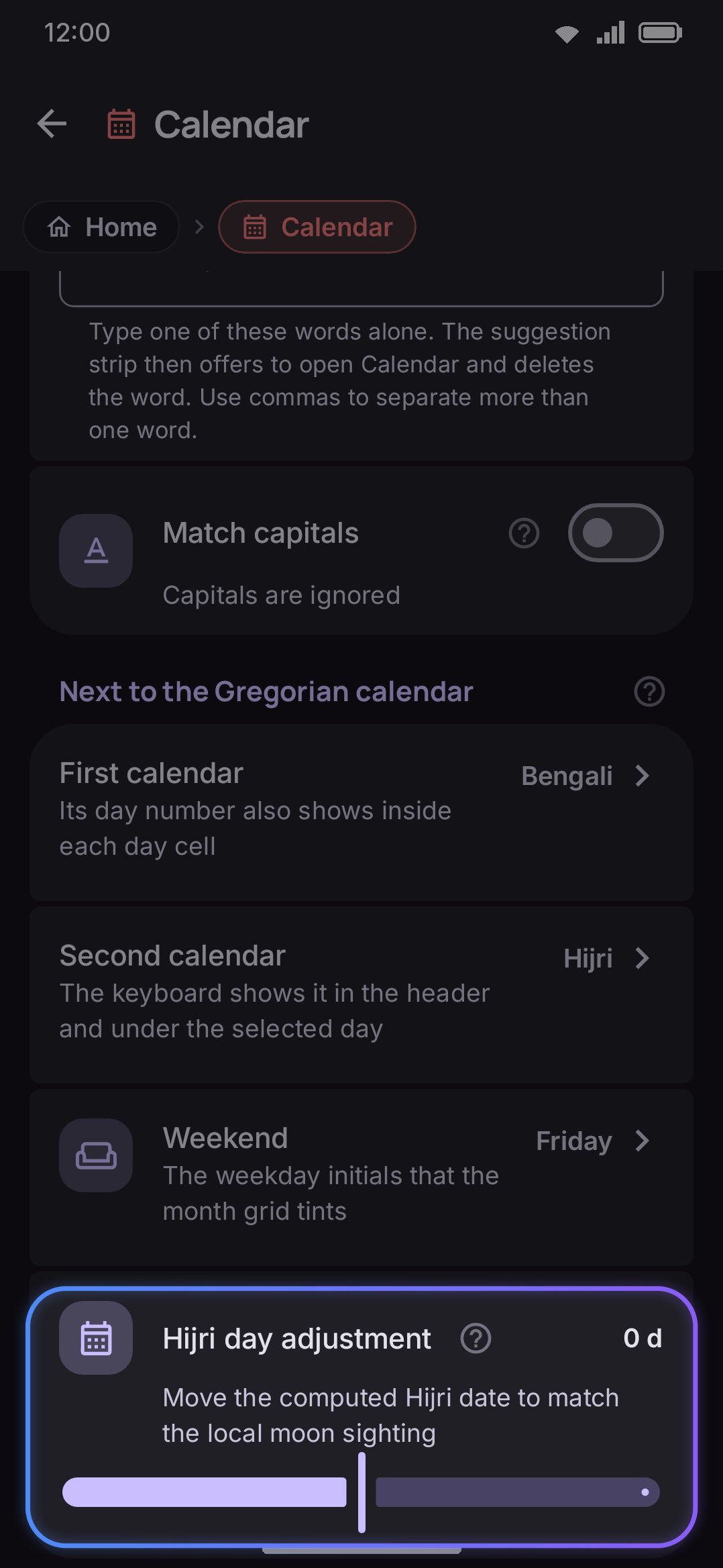
- First calendar: the default depends on your phone’s region. That’s the Bengali calendar in Bangladesh, era years in Japan, Hindu (Saka) in India, Hijri across much of the Arab world, and None where no second calendar is in common use. Choose from Bengali, Hijri, Chinese, Hebrew, Hindu (Saka), Persian (Solar Hijri), Buddhist (Thai solar), Japanese (era years), or None. Its day number is the one that also shows up inside each day cell. Buddhist and Japanese days line up one-to-one with Gregorian, so if you pick either the cell falls back to Second calendar’s day number instead, where that one has its own.
- Second calendar: the same nine choices, also region-defaulted. Bangladesh gets Hijri alongside the Bengali calendar, Japan gets the Chinese calendar alongside era years, and most places get None. It shows in the month header and under the selected day, alongside First calendar.
- Weekend: which weekday initials the month grid tints. Seven presets: Saturday & Sunday, Friday & Saturday, Thursday & Friday, Friday, Saturday, Sunday, or no weekend at all. The default comes from your phone’s region: Friday and Saturday across much of the Middle East, Friday in Bangladesh, Thursday and Friday in Iran and Afghanistan, Saturday in Nepal, Sunday alone in India, Mexico and the Philippines, and Saturday and Sunday everywhere else.
- Hijri day adjustment: a slider from −2 to +2 days, default 0. It only appears when First or Second calendar is set to Hijri. The tool computes Hijri dates with the tabular (arithmetic) calendar rather than real moon sighting, so real Islamic months can start a day or two off from the tables. Use this to match your local authority’s sighting-based calendar.
Under New events:
- Save events: In the keyboard (the default) writes new events straight into your calendar. In the calendar app makes Save open your calendar app’s editor with the event filled in, for you to save there; it also makes the “Add to calendar” selection action go to the calendar app. Changing and deleting events always happens in the keyboard.
- Default calendar: which calendar a new event starts in. Primary calendar picks the first one you can write to, primary calendars first. Until calendar access is allowed, the row offers to ask for it.
- Event length: 15 minutes up to 4 hours, default 1 hour.
- Reminder: none, at the start, or 5 minutes up to 1 day before, default 10 minutes.
Under Invite online (see Invite online):
- Mobilizon instance: the address of the instance your account is on, like
mobilizon.fr. Once it’s typed, Email and Password appear with Sign in. The password is sent once to your instance’s own login and isn’t kept: the keyboard stores only the sign-in tokens that come back, renews them when the instance asks, and shows Signed in with a Sign out button. If the instance stops taking them, the invitation card asks you to sign in here again. Changing the address signs you out. - Pretix server: the address of the server, like
pretix.eu. Then Organizer, the short name in the organizer’s address (pretix.eu/<organizer>/); API token, a team token from the organizer’s Teams page, from a team allowed to create events; and Currency, three letters, blank for your region’s (Pretix wants one even though the ticket is free). Check Pretix asks the server for the organizer with that token and shows its name.
The Mobilizon tokens and the Pretix token are kept with your other service keys and left out of exported backups unless you choose to include secrets.
Under Weather:
- Weather on events: off by default. On, event cards show the forecast for their time and place, as described in Weather on events. It needs the Weather tool turned on (and the Weather and location bundle on Extensions); with Weather off, no card shows it.
Accuracy varies by calendar: Chinese dates are computed astronomically (real new-moon and solar-longitude calculations), so they’re exact for the modern era. Hebrew, Persian, Hindu (Saka), Buddhist, and Japanese are all exact arithmetic conversions. Hijri is the only one that’s an approximation, which is why it’s the only one with an adjustment slider.
The same First calendar / Second calendar / Weekend pickers also appear on the first-run setup page during onboarding, if you’ve kept Calendar enabled: anything you set there is the same setting, just asked up front. All three already open on the region’s guess, so that page is where you see it and correct it.
The calendar and the clock are the Calendar and clock bundle on Extensions. Off there, both tools and the clock’s settings screen leave the keyboard and the app until the bundle is switched back on.
Details & edge cases
Section titled “Details & edge cases”- Insert as text types an event in Gregorian dates only. The alternate calendars are shown in the panel but not inserted.
- Selecting a date or time in your text and using Add to calendar from the selection actions opens this composer with the selection as the title and the date and time already set. A time zone named in the selection (“5pm EST”) is kept, and the composer shows which zone the times are in.
- Opened from a date smart chip (“next friday”), the panel lands on that day, and the header’s + starts a new event there.
- The month grid, the agenda and the composer play their motion (the disc’s spring, the cards popping in, the grid’s slide) only while the keyboard’s animations are on; with reduced motion everything lands in place at once.
- Calendar isn’t pinned to the toolbar out of the box, and it’s only in the “show me everything” starter set that setup lands, not the minimal or the recommended one. Pick either of those two simpler answers and Calendar starts switched off, so you’ll want to turn it on yourself under Settings → Tools.
- Reopening Calendar from the toolbar while the panel is already open closes it, same as most other panel tools.
- The region defaults are a guess, and only ever a starting one. They come from the same permission-free signals as suggested languages: the SIM’s country, then the network’s, then your locale’s region. Those are consulted only until you pick something. Once you have, your pick is what sticks, wherever the phone travels.
- With Weather on events off and no invitation published, nothing about the Calendar tool touches the network. With the weather on, it sends Open-Meteo the places of the events you look at and the coordinates it found for them, never their titles, times, notes or guests. Invite online sends only to the Mobilizon instance or Pretix server you set up, and only when you press Sign in, Check, Post as or Publish: the invitation’s title, description, times, place and visibility (and on Pretix its number of places), never the event’s guests or reminders. Each request is listed under Network activity as Calendar invitations. Your calendar account syncs the events you add or change the way it always does. See network policy for what the keyboard itself sends.
- An invitation is a copy. Changing or deleting the event in your calendar afterwards doesn’t change the page; do that on Mobilizon or Pretix.